Are you a creative enthusiast who loves designing on Canva, but find yourself switching between team and personal accounts? Don’t worry; you’re not alone! Many Canva users face this challenge. In this post, we’ll share a quick and easy guide on how to switch from team to personal on Canva.
Whether you’re transitioning from work/client projects to personal workspace or simply want to keep your professional and personal designs separate, switching between team and personal accounts on Canva is a breeze once you know how. Let’s walk through the steps together, but before that let’s quickly understand Team and Personal accounts and what they offer.
Understanding Team and Personal Accounts
Team Account
As the name suggests, a team account is for multiple users who collaborate for their work. It allows multiple members to access, edit, and share designs seamlessly. Let’s say you’re a small business owner or organization aiming for seamless collaboration in your design process. Canva’s team account offers premium features like real-time collaboration, enterprise-level security, centralized control, flexible billing, and integration with project management tools. With access to analytics and team management tools, you can streamline workflows, maintain brand consistency, and scale your team effortlessly.
Personal Account
On the other hand, Canva’s personal account is tailored for individuals. So, all the design documents and projects you are working on are kept in your personal workspace in your account. As an individual, you can choose between the free account or the Pro account. Going Pro means unlocking a bunch of cool features and a treasure of Canva’s premium elements and templates to make your designs stand out.
How To Switch from Team to Personal on Canva
Now, switching from team to personal on Canva is super simple! I’ll show you two ways to do it. Here’s the first way –
- Click on the rectangle located at the top of the left menu bar on the Canva homepage. This will display the various teams you are a part of, as well as your personal account.
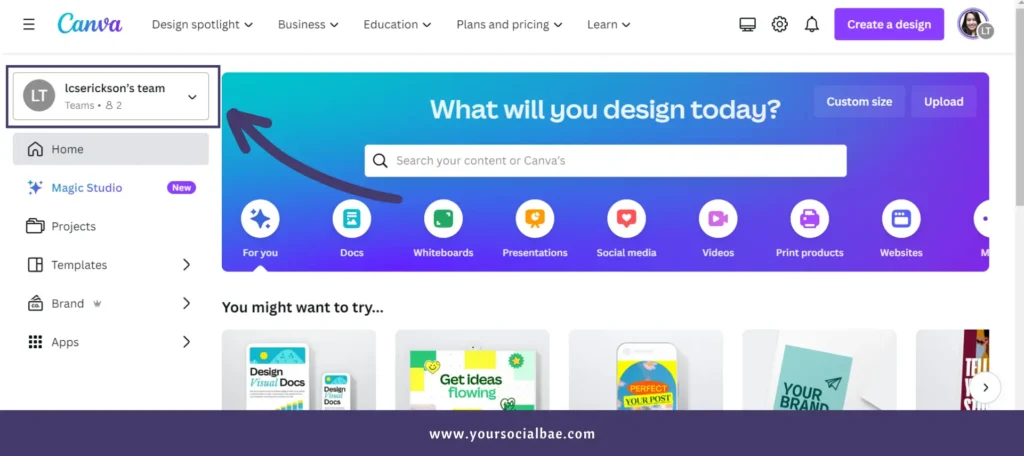
- Next, simply choose your personal account to access your workspace.
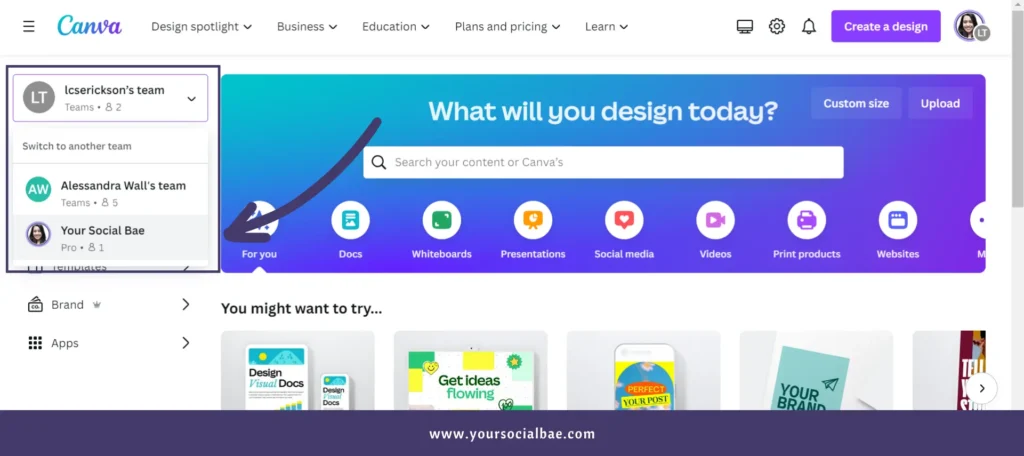
Here’s another way to switch from team to personal on Canva –
• Click on your profile picture displayed at the top right corner of the Canva homepage.
• In the first section, you will see the different teams you are a part of, and of course your personal account as well. Simply select the account where you wish to work and it will navigate you to that workspace.
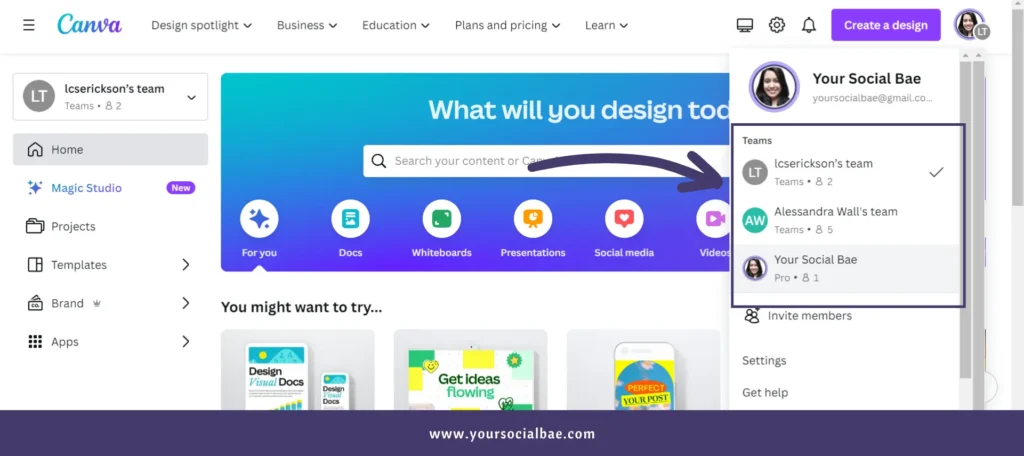
Note: This process is the same for switching Canva teams.
Final Thoughts
One thing I love the most about Canva is that it makes everything simple and user-friendly for everyone. The switching between teams or from team to personal account is like a seamless transition between workspaces where you can conveniently manage your work and collaborate with your team as well as keep working on creatives that you wish to keep private.
Whether you’re designing marketing materials for your business with your team or creating birthday cards for friends and family, Canva has you covered.
I hope this was helpful to you. Happy Designing!
Must Read: 12 New Canva Features For Canva Lovers [March 2024]