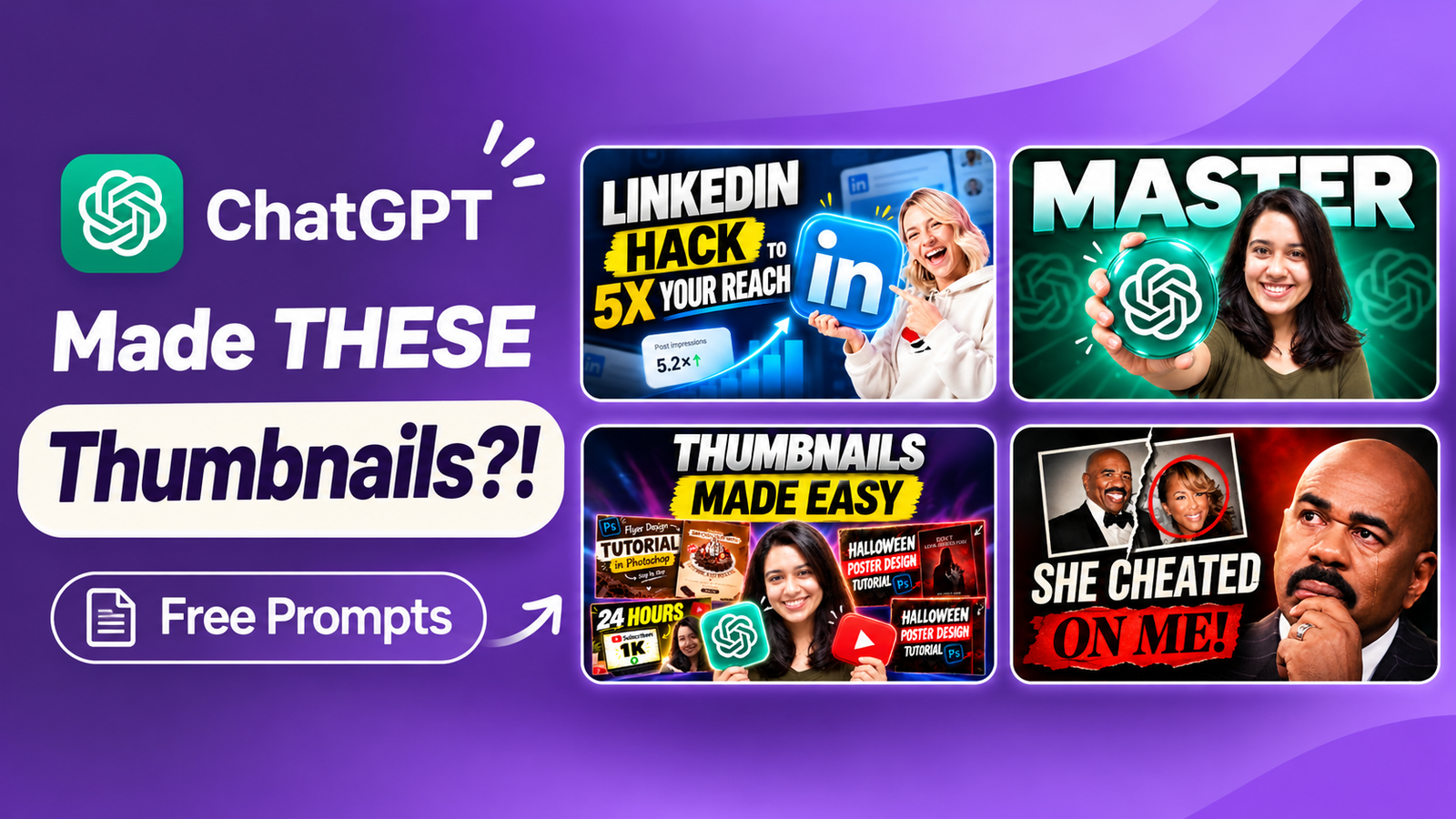
Creating a YouTube thumbnail can take longer than expected, especially when you have no idea where to start.
But what if you could use ChatGPT to come up with thumbnail ideas, generate designs, or even improve a thumbnail you’ve already made?
I tried a few different approaches, and in this post, I’m sharing 4 ChatGPT prompts for YouTube thumbnails that you can copy, customize, and try for yourself.
No complicated setup. Let’s get straight to it!
Create YouTube Thumbnails with ChatGPT
1. Create YouTube Thumbnails from Scratch with ChatGPT
Instead of asking ChatGPT to generate a random thumbnail, I like to start by brainstorming a few concepts.
This gives you different creative directions to choose from before generating the final image.
Prompt 1: Generate YouTube Thumbnail Ideas
Copy this prompt into ChatGPT and replace the details in brackets with your video information.
Act as an expert YouTube thumbnail strategist and high-CTR visual designer. Video topic: [Briefly describe what happens in the video] Target audience: [Who is this video for?]. Channel Vibe / Style: [e.g., minimalist, high-energy/beast style, clean/educational, moody/tech] Suggest 3 distinct, click-worthy thumbnail concepts. For each, briefly describe the headline, main visual, and layout. Then compare the concepts and recommend the strongest one, explaining why it would appeal to the target audience. Keep the ideas clear, visually engaging, and uncluttered. Avoid misleading clickbait. Do not generate an image yet.
Once ChatGPT gives you three concepts, choose the one you like best.
Prompt 2: Turn Your Selected Concept into a Thumbnail
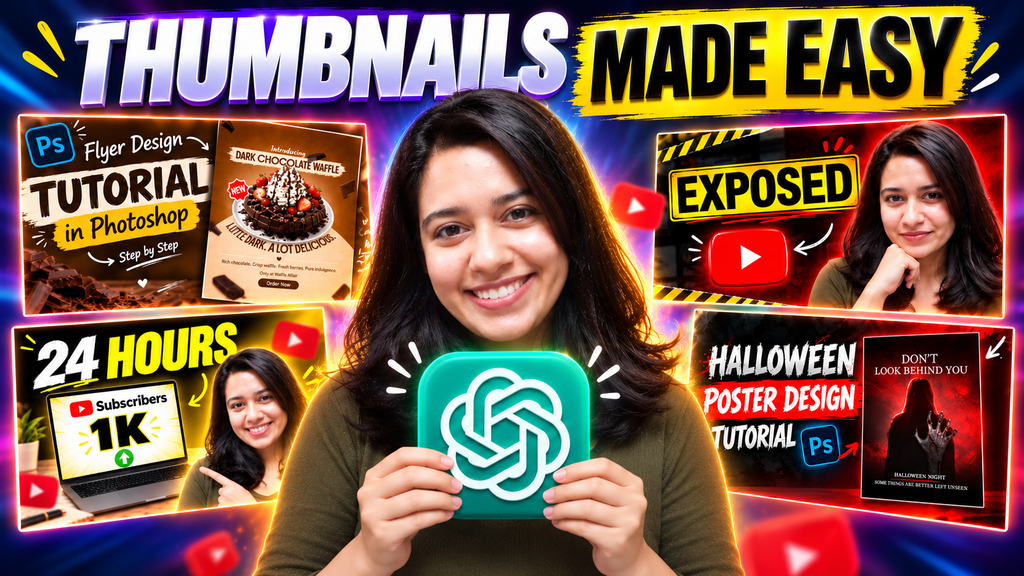
For my own YouTube video, I chose a concept featuring my photo, the ChatGPT logo, and four thumbnail designs around me.
Here’s the exact prompt I used:
I've chosen Concept [Number] from your suggestions. Create a click-worthy YouTube thumbnail based on this concept. Here are my design preferences: – Headline: THUMBNAILS MADE EASY – Main visual: Use my uploaded photo(Image 1 attached – Preserve my actual appearance and facial features) prominently in the center holding the ChatGPT logo, with two floating YouTube thumbnail designs on each side (Refer to Image 2 for the 4 thumbnail designs to be featured). Keep the 4 thumbnail designs same as shown in Image 2. Keep the thumbnails slightly layered behind me. Place “THUMBNAILS MADE EASY” prominently at the top in bold, readable typography. – Visual style: Bold and cinematic. – Colors and typography: Use your creative judgment to create a cohesive color palette, bold typography, and strong contrast. Arrange the elements with balanced spacing, a strong focal point, and clear visual hierarchy. Keep the headline readable at small sizes and avoid clutter. Generate the thumbnail directly in a 16:9 landscape format at 1920 × 1080 pixels.
Quick tip: This is my specific example, so change the headline, visual details, and image references to match your own video. You can also let ChatGPT decide the layout if you don’t have a particular design in mind.
Here’s the thumbnail I created using this workflow:
2. Redesign an Existing YouTube Thumbnail with ChatGPT
Already have a thumbnail but feel like something is missing?
You don’t necessarily need to start over. Upload your existing design and ask ChatGPT to explore a better version.
Prompt 3: Improve Your Existing Thumbnail
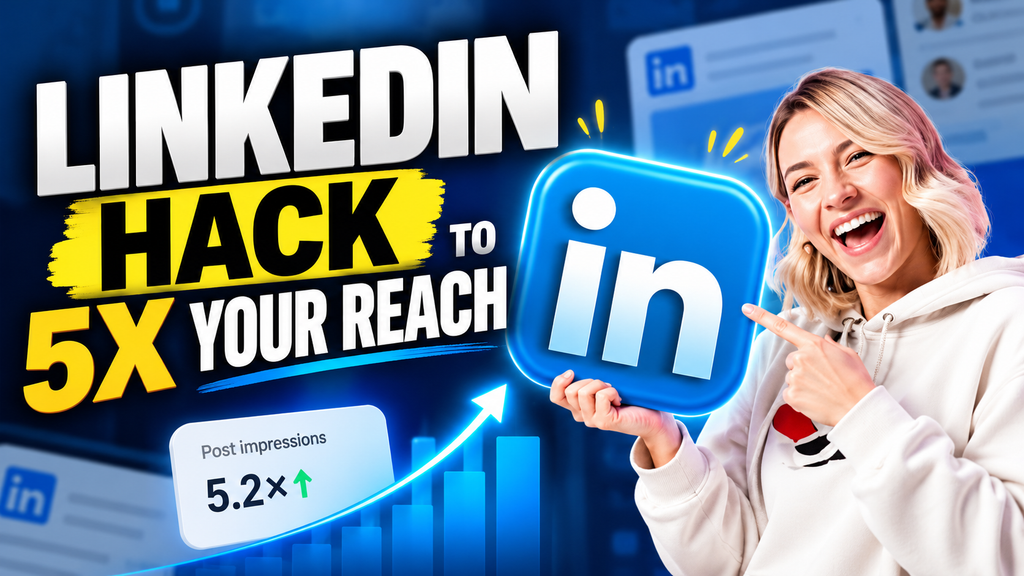
Act as an experienced YouTube thumbnail designer. Redesign my uploaded thumbnail to make it more compelling and visually effective. Video topic: [Enter video topic] Evaluate the existing design and independently improve its composition, visual hierarchy, typography, colors, and overall impact wherever needed. You may explore a different layout or visual style if it would work better. Keep the thumbnail relevant to the video topic, make the main message easy to understand at a small size, and avoid clutter or misleading clickbait. Generate the thumbnail directly in a 16:9 landscape format at 1920 × 1080 pixels.
This is useful when you want to experiment with different layouts, typography, or colors without manually rebuilding everything.
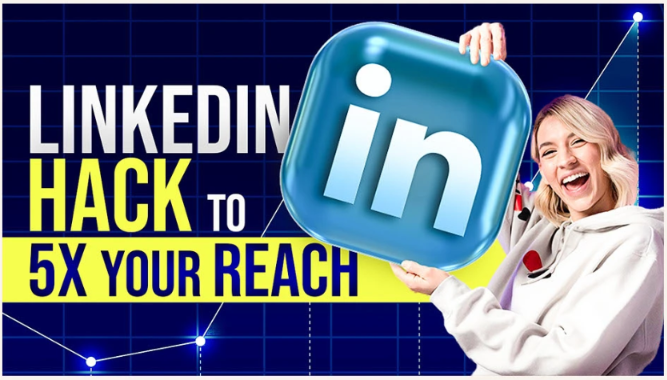
Here’s a before-and-after example:
3. Create a YouTube Thumbnail Using a Reference Image
Ever come across a thumbnail and thought, “I love this style, but I wish I could make something similar for my own video”?
You can use it as a visual reference!
Upload the thumbnail you like, along with your own photo, and let ChatGPT explore a fresh design inspired by it.
Prompt 4: Design a Thumbnail Using a Reference/Inspiration
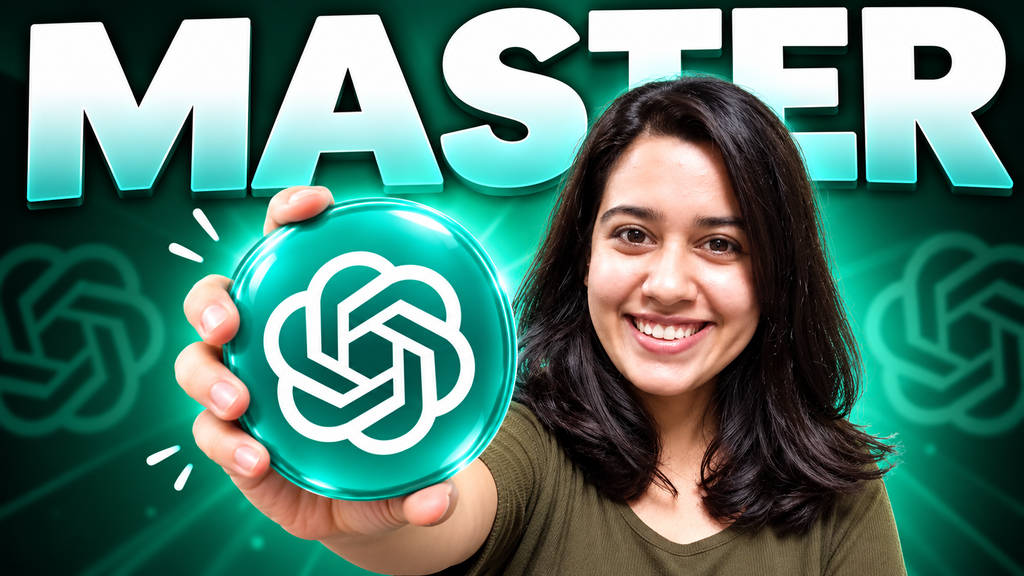
Act as an experienced YouTube thumbnail designer. Use my uploaded thumbnail (Image 1) as inspiration to create a new, original thumbnail for my video. Video topic: [Your Video Topic] Take inspiration from the reference's overall concept, composition, and visual style, but introduce creative changes so the final design feels fresh and distinct rather than an exact copy. My customizations: – Replace the person with my uploaded photo (Image 2). Preserve my actual appearance and facial features. – Use the headline: "[Your Headline]" Use your creative judgment to improve the layout, typography, colors, and supporting elements while keeping the main concept recognizable. Make the thumbnail visually compelling, uncluttered, and readable at small sizes. Generate the thumbnail directly in a 16:9 landscape format at 1920 × 1080 pixels.
The idea here isn’t to copy someone else’s thumbnail. It’s to take inspiration from the overall style and create something original that fits your video.
Here’s an example of what I created:
A Few Tips Before You Try These Prompts
- Be specific. Mention your video topic, preferred headline, and the style you’re going for.
- Use good reference images. Clear photos and relevant references can make a big difference.
- Don’t settle for the first result. Ask ChatGPT to adjust the typography, colors, composition, or anything that doesn’t look right.
- Always review the final image. Check text spelling, facial features, hands, and readability before uploading it to YouTube.
Watch the Full YouTube Tutorial
Want to see how these prompts actually work?
I’ve put together a step-by-step YouTube tutorial where I demonstrate all three methods, from generating thumbnail concepts to redesigning existing thumbnails and working with references.
Watch the full tutorial on YouTube
And if you try any of these prompts, I’d love to see what you create! Feel free to share your results in the comments.
Happy creating! 💜
Must Read: Top 10 Engaging Instagram Comment Ideas to Attract More Followers